Categories and Products Management
Effective management of product categories and inventory is essential for any business. SimpleBillBook provides comprehensive tools to organize your products, track stock levels, and manage inventory efficiently.
Product Categories
Categories help you organize your products into logical groups, making it easier to manage and find items in your inventory.
Viewing Categories
To view all product categories:
- Navigate to Manage Product → Categories from the main sidebar
- You'll see a table displaying all existing categories
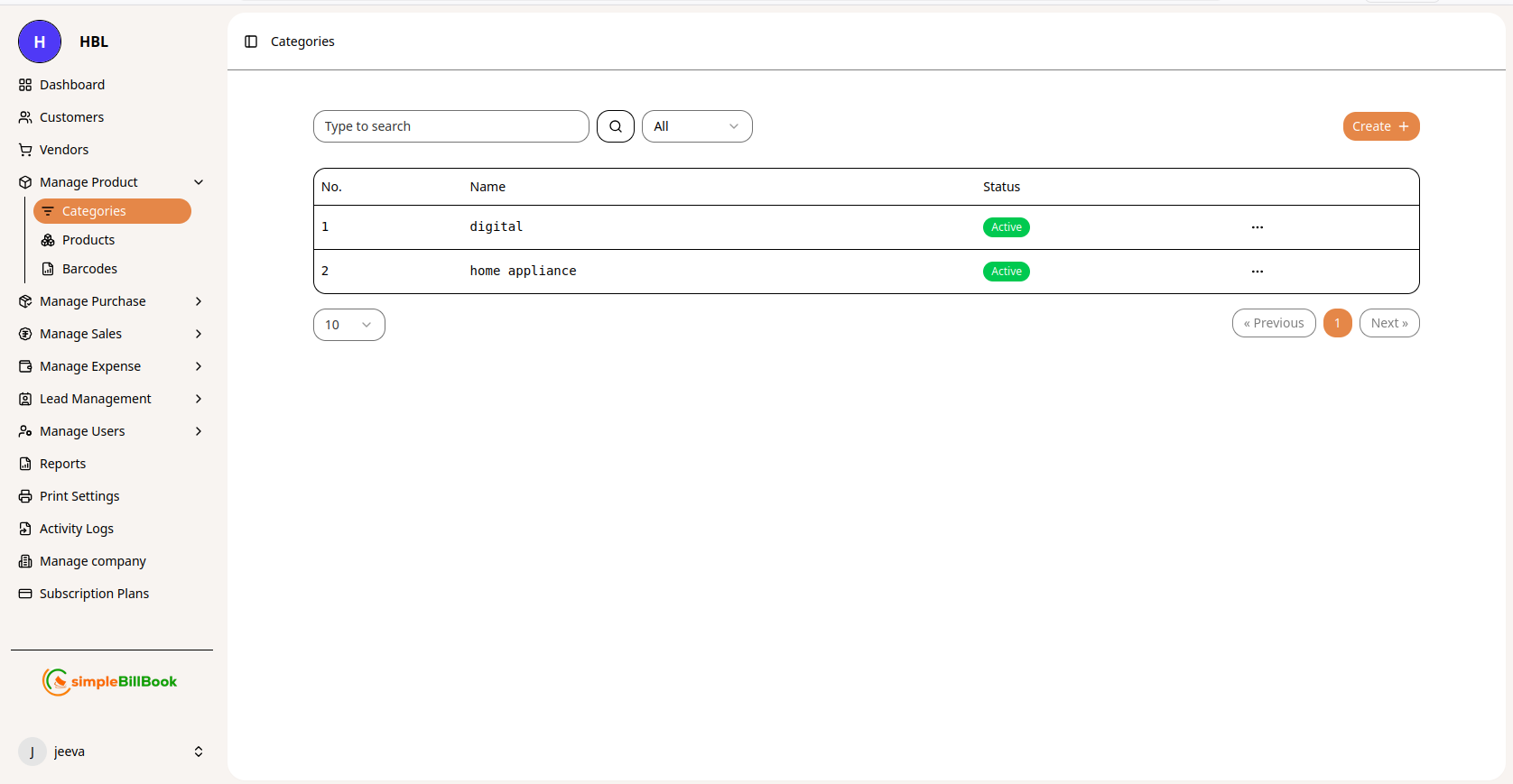 Figure 1: Categories list showing all product categories with their status
Creating a New Category
To add a new product category:
- From the Categories page, click create button at the top right
- Enter the category name
- Click Save to create the category
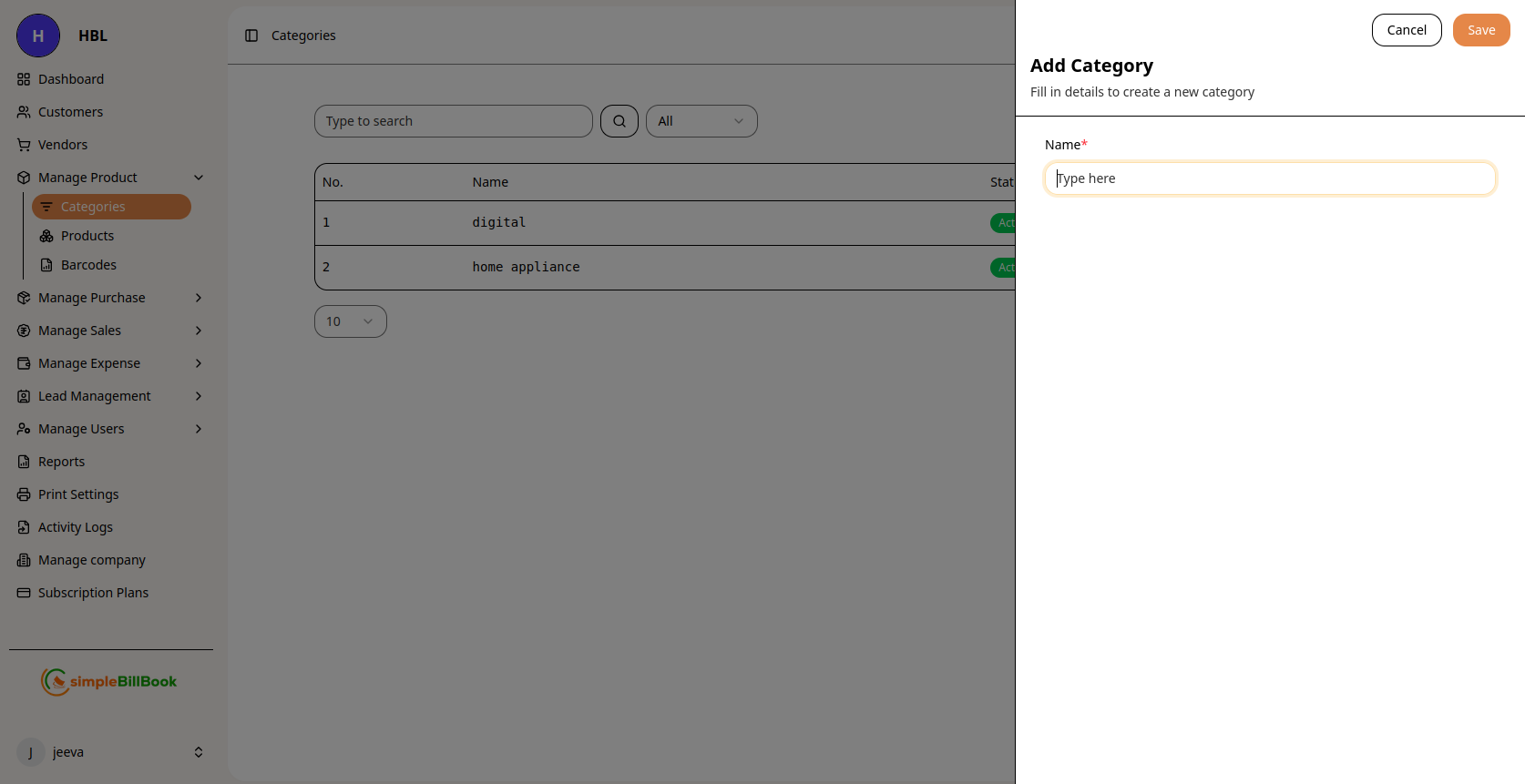 Figure 2: Form for creating new product categories
Category Creation Tips:
- Use clear, descriptive names
- Categories can be activated/deactivated later
- Active categories are available for product assignment
Product Management
Products are the core of your inventory. SimpleBillBook allows you to track detailed information about each product including pricing, stock levels, and more.
Viewing Products List
To view all products:
- Navigate to Manage Product → Products from the main sidebar
- You'll see a comprehensive table with all your products
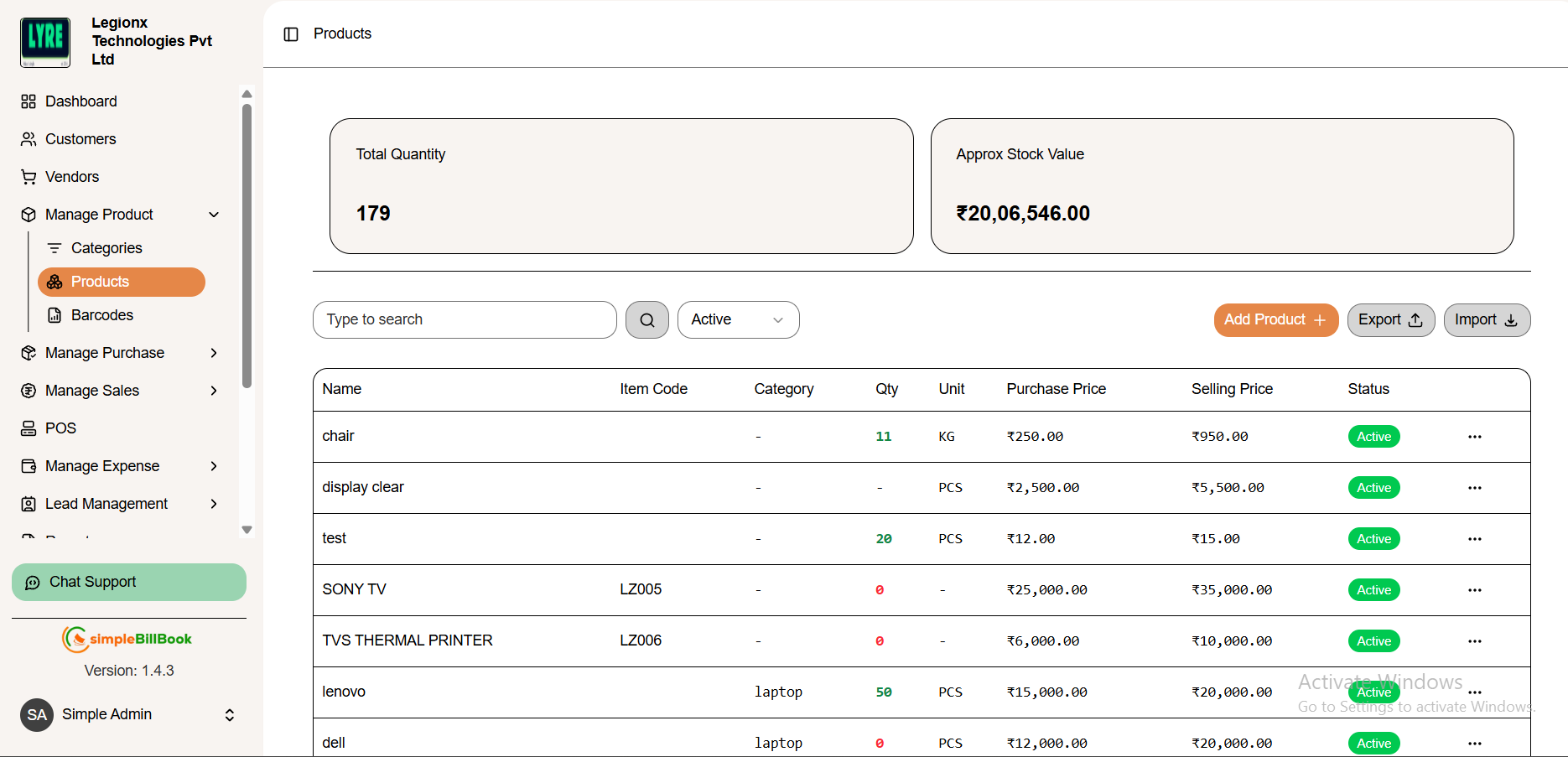 Figure 3: Products list showing inventory details
Product Table Columns:
| Column | Description |
|---|---|
| Name | Product name |
| Item Code | Unique product identifier |
| Category | Assigned product category |
| Qty | Current stock quantity |
| Unit | Measurement unit |
| Purchase Price | Cost price per unit |
| Selling Price | Retail price per unit |
| Status | Active/Inactive |
Creating a New Product
To add a new product to your inventory:
- From the Products page, click add Product button at the top right
- Fill in the required product details
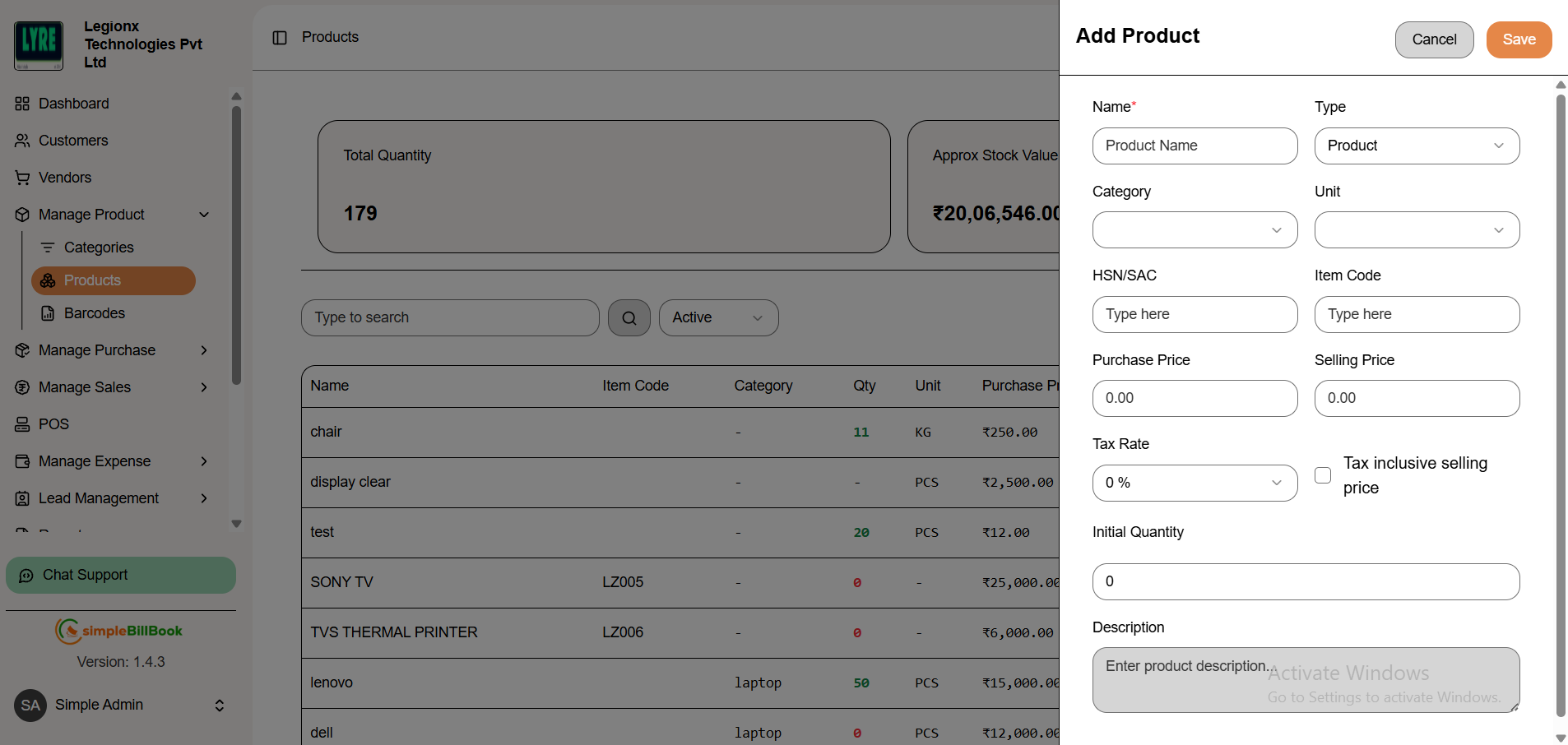 Figure 4: Form for creating new products
Required Product Information:
| Field | Description |
|---|---|
| Name | Name of the product or service |
| Type | Indicates whether the item is a product or service |
| Category | Assigned category for product organization |
| Unit | Measurement unit used for the item |
| HSN/SAC | Government-issued tax classification code for products (HSN) or services (SAC) |
| Item Code | Unique identifier or SKU for the product |
| Initial Quantity | Opening stock quantity entered during product creation |
| Purchase Price | Cost price of the item per unit |
| Selling Price | Selling price charged per unit |
| Tax Rate | Applicable GST or tax percentage for the item |
| Tax Inclusive Price | Checkbox to indicate whether the selling price includes tax |
| Description | Additional product or service details and specifications |
Product Actions
Each product in the list has available actions for management:
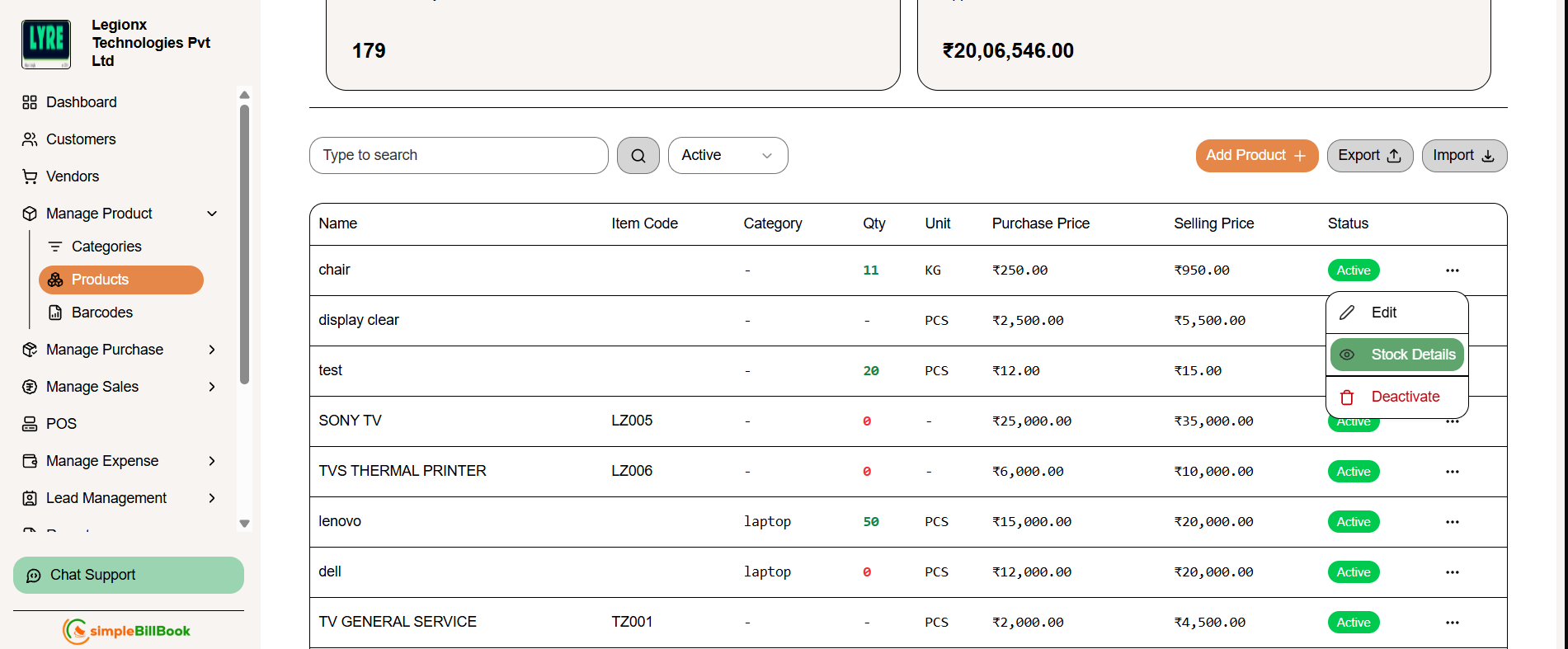 Figure 5: Product list with action buttons
Available Actions:
| Action | Description |
|---|---|
| Edit | Modify product details |
| Stock Details | View stock history and adjust inventory |
| Deactivate/Activate | Change product status |
Stock Management
Viewing Stock Details
To view detailed stock information for a product:
- Click Stock Details on any product row
- You'll see comprehensive stock information
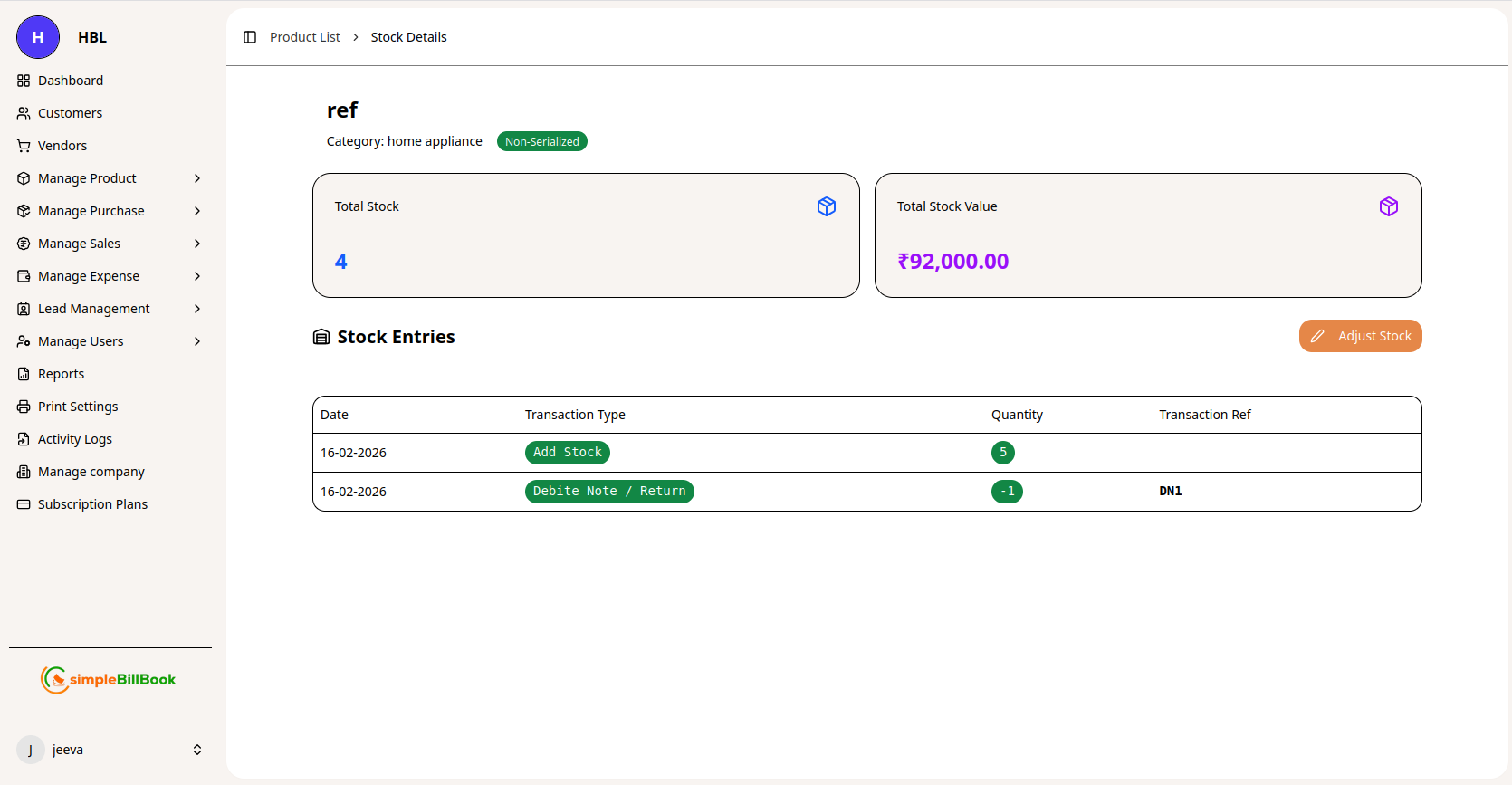 Figure 6: Detailed stock information for a specific product
Stock Details Include:
| Section | Information |
|---|---|
| Product Info | Name and category type |
| Total Stock | Current quantity in inventory |
| Total Stock Value | Monetary value of current stock |
| Stock Entries | History of all stock transactions |
Example:
- Product: home theatre
- Total Stock: 5 units
- Total Value: ₹25,000.00
- Recent Entry: 09-02-2026 - Add Stock - 5 units
Adjusting Stock
To adjust stock levels:
- From Stock Details, click on Adjust Stock or similar option
- Use the stock adjustment form
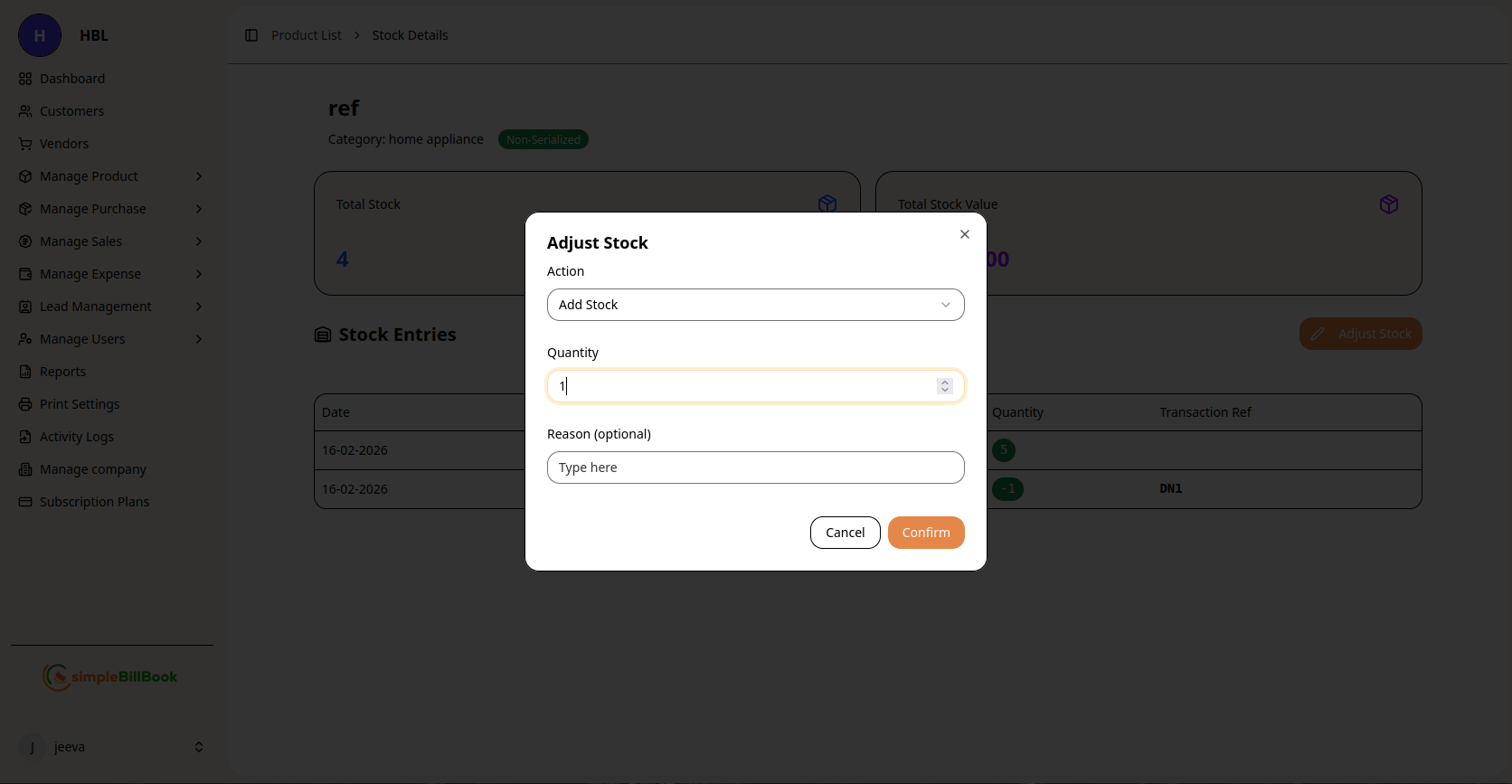 Figure 7: Form for adjusting stock quantities
Stock Adjustment Fields:
| Field | Description |
|---|---|
| Action | Select operation (Add Stock, Remove Stock, etc.) |
| Quantity | Number of units to adjust |
| Date | Transaction date (defaults to current) |
| Reason | Optional notes about the adjustment |
| Transaction Number | Auto-generated reference |
Adjustment Options:
- Add Stock - Increase inventory
- Reduce Stock - Decrease inventory (damage, loss, etc.)
Adjustment Workflow
- Select the Action type
- Enter the Quantity to adjust
- Verify the Date (edit if needed)
- Add a Reason for documentation
- Click Confirm to complete the adjustment
- Click Cancel to discard changes
Search and Filtering
Product Search
Use the search functionality to quickly find products:
- Type to search - Search by product name
- All dropdown - Filter by various criteria
- Pagination - Navigate through pages (Previous, 1, 2, Next...)
- Items per page - Display 10 items per page (configurable)
Category Filtering
- Filter categories by Status (Active/Inactive)
- Use pagination controls for large category lists
Best Practices
For Categories:
-
Logical Grouping: Create categories that make sense for your business
- Electronics, Furniture, Clothing, etc.
- Avoid too many similar categories
-
Consistent Naming: Use clear, consistent names
- "Home Appliances" not "homeappliances"
- "Entertainment" not "entertain"
-
Status Management:
- Deactivate unused categories instead of deleting
- This preserves historical data
For Products:
-
Unique Item Codes:
- Ensure every product has a unique code
- Use a consistent naming pattern (e.g., CAT-001)
-
Accurate Pricing:
- Keep purchase and selling prices updated
- Review pricing regularly
-
Stock Management:
- Record all stock adjustments with reasons
- Regular stock counts help maintain accuracy
-
Complete Information:
- Fill in all available fields
- Add descriptions for better identification
Common Scenarios
Adding New Stock
- Navigate to product Stock Details
- Click Adjust Stock
- Select Add Stock action
- Enter quantity
- Add reason (e.g., "New shipment received")
- Click Confirm
Handling Damaged Goods
- Go to product Stock Details
- Click Adjust Stock
- Select Reduce Stock action
- Enter quantity damaged
- Add reason (e.g., "Damaged in transit")
- Click Confirm
Updating Product Information
- Find product in the list
- Click Edit action
- Modify necessary fields
- Save changes
Managing Out-of-Stock Items
- Filter or search for products with Qty: 0
- Review each product
- Create purchase orders for needed items
- Add stock when received
Reports and Analytics
Available Reports
| Report | Description |
|---|---|
| Stock Summary | Current inventory levels and values |
| Stock Detail Report | Transaction history by product |
| Low Stock Alert | Products below reorder level |
| Product Valuation | Total value of inventory |