Point of Sale (POS) Management
The Point of Sale (POS) system in simpleBillBook helps you process customer transactions efficiently, manage billings, and generate receipts. This guide covers using the POS interface, processing sales, and configuring receipt templates.
POS Interface Overview
To access the POS system:
- Navigate to POS from the main sidebar
- You'll see the main POS interface for processing customer transactions
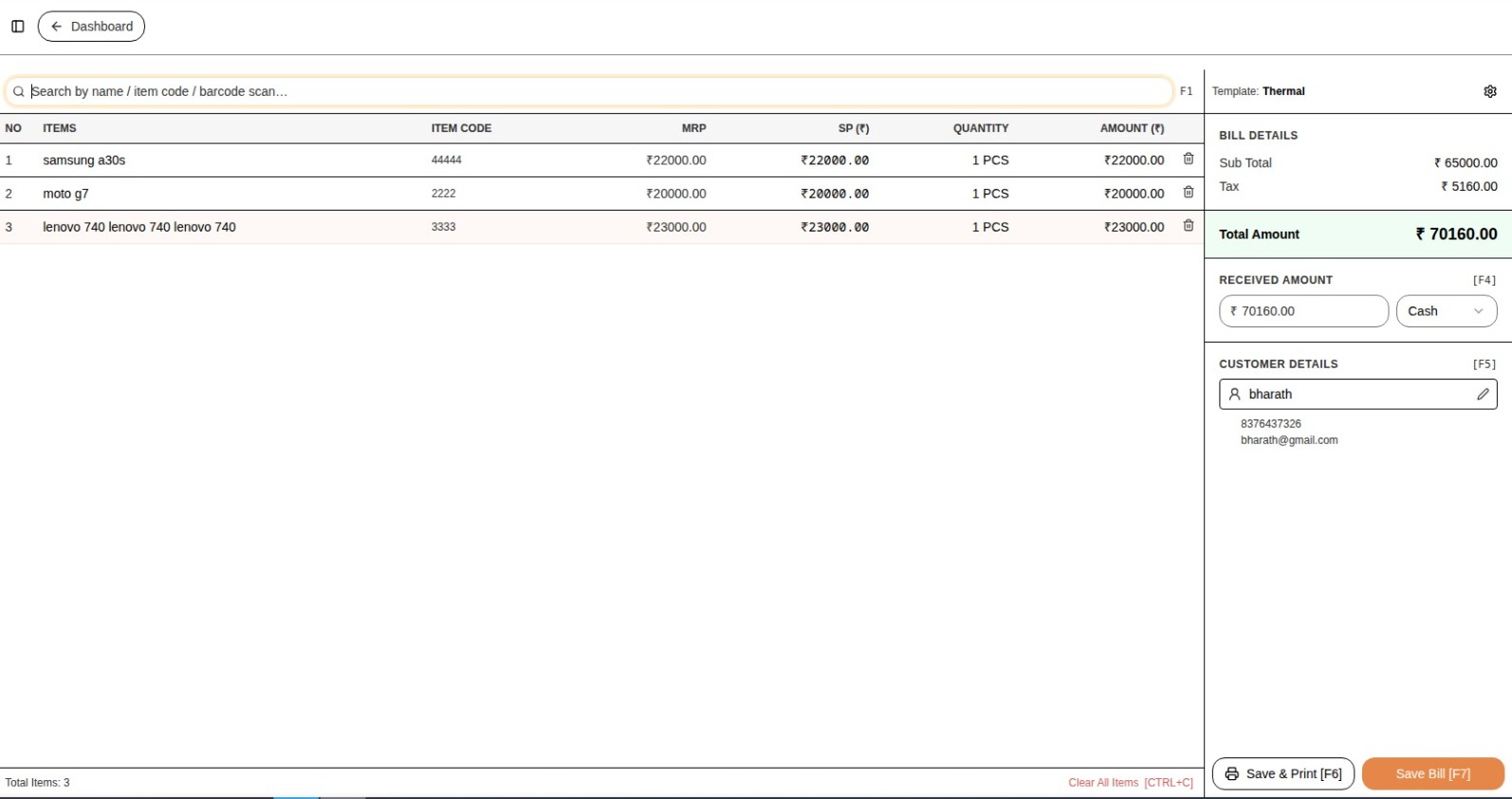 Figure 1: Main POS interface showing bill items and customer details
Search Function
- Search Bar: Search by name / item code / barcode scan...
- Quickly find products by name, item code, or barcode scanning
Bill Items Table
The POS interface displays a detailed table of items added to the current bill:
| NO | ITEMS | ITEM CODE | MRP | SP (₹) | QUANTITY | AMOUNT (₹) |
|---|---|---|---|---|---|---|
| 1 | samsung a30s | 44444 | ₹22000.00 | ₹22000.00 | 1 PCS | ₹22000.00 |
| 2 | moto g7 | 2222 | ₹20000.00 | ₹20000.00 | 1 PCS | ₹20000.00 |
| 3 | lenovo 740 | 3333 | ₹23000.00 | ₹23000.00 | 1 PCS | ₹23000.00 |
Bill Details Summary
| Description | Amount |
|---|---|
| Sub Total | ₹65000.00 |
| Tax | ₹5160.00 |
| Total Amount | ₹70160.00 |
Payment Processing
Received Amount Section
RECEIVED AMOUNT
- Shortcut Key: [F4]
- Amount: ₹70160.00
- Payment Method: Cash
Customer Details
- Customer: bharath
- Phone: 8376437326
- Email: bharath@gmail.com
Bill Summary
- Total Items: 3
- Clear All Items Shortcut: [CTRL+C]
POS Receipt Templates
To configure receipt templates:
- Click the setting Icon in the top-right corner
- Access the POS Receipt Templates section
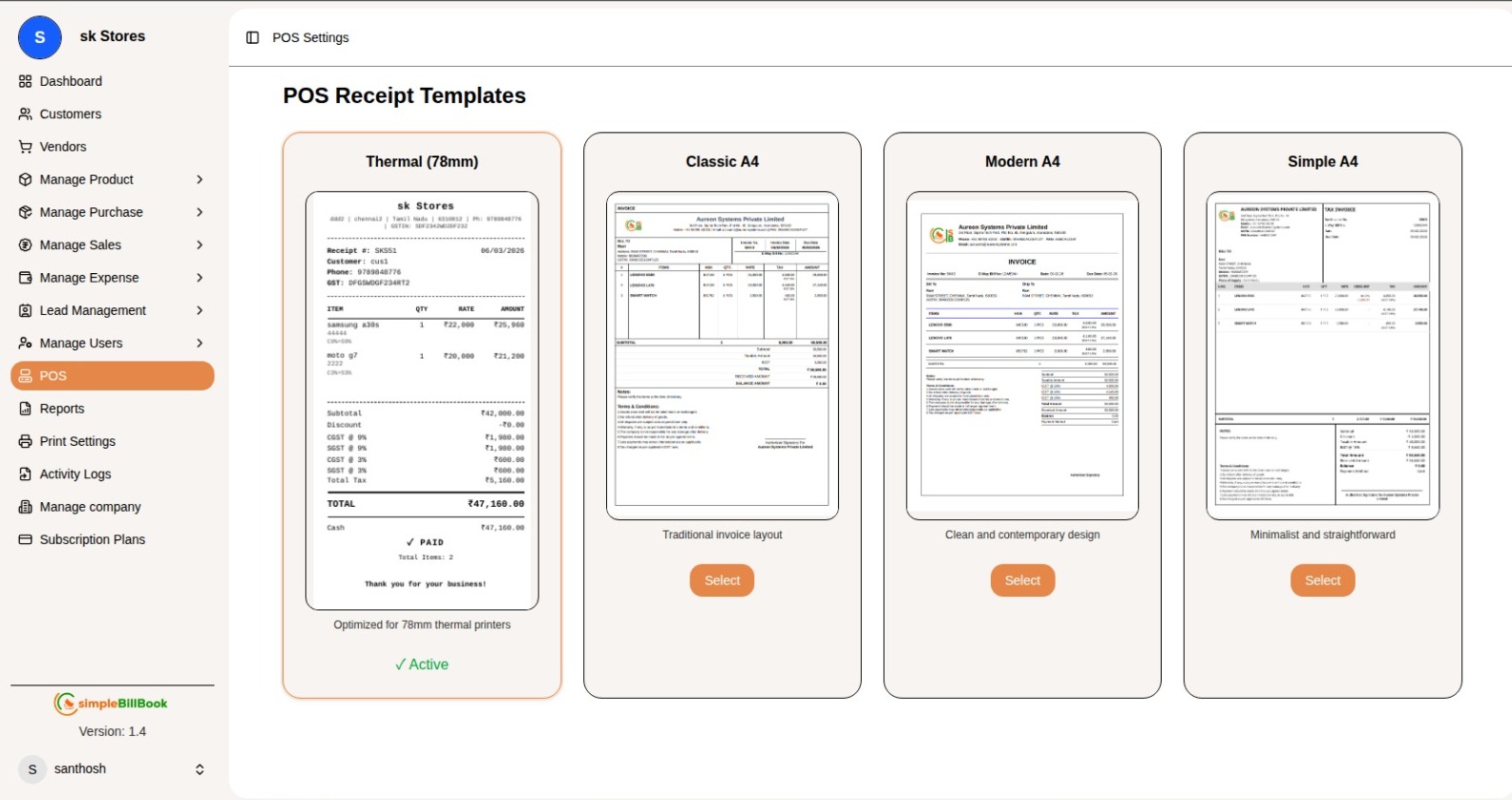 Figure 2: POS receipt template configuration options
Available Templates
1. Thermal (78mm)
Optimized for 78mm thermal printers
√ Active
2. Classic A4
Traditional invoice layout
[Select]
3. Modern A4
Clean and contemporary design
[Select]
4. Simple A4
Minimalist and straightforward
[Select]
Using the POS System
Step 1: Adding Items to Bill
- Use the search bar to find products by:
- Product name
- Item code
- Barcode scan
- Select items to add them to the bill table
- Adjust quantities as needed (default: 1 PCS)
Step 2: Review Bill Details
Monitor the running total:
- Sub Total: Sum of all item amounts
- Tax: Calculated tax amount
- Total Amount: Final bill amount including tax
Step 3: Process Payment
- Press F4 or click the received amount field
- Enter the received amount (₹70160.00 in example)
- Select payment method (Cash shown in example)
- System will calculate change automatically
Step 4: Customer Information
Add customer details:
- Select from existing customers (e.g., bharath)
- Customer phone number
- Customer email address
Step 5: Complete Transaction
- Review all items and totals
- Press shortcut or click to complete sale
- Receipt will be generated based on active template
Clear All Items
- Use CTRL+C shortcut to clear all items from the current bill
- Confirmation prompt before clearing
Receipt Template Configuration
Selecting a Template
- Browse available templates:
- Thermal (78mm)
- Classic A4
- Modern A4
- Simple A4
- Click [Select] button for your preferred template
- Template becomes active (√ Active indicator)
Template Features
- Thermal (78mm): Optimized for thermal printers
- Classic A4: Traditional invoice layout
- Modern A4: Clean and contemporary design
- Simple A4: Minimalist and straightforward
Best Practices for POS Operations
Daily Operations
- System Check: Verify printer and barcode scanner are working
- Price Verification: Confirm prices before processing
- Customer Information: Capture customer details for records
- Payment Confirmation: Verify received amount before completing
Inventory Management
- Stock Levels: Monitor inventory as items are sold
- Low Stock Alerts: Set up notifications for low inventory
- Product Updates: Keep item codes and prices updated
Customer Service
- Quick Search: Use barcode scanning for faster checkout
- Accurate Billing: Double-check quantities and prices
- Clear Communication: Inform customers of total amounts
- Receipts: Provide printed or digital receipts
Keyboard Shortcuts
| Shortcut | Function |
|---|---|
| F4 | Process received amount |
| CTRL+C | Clear all items |
Integration with Other Modules
Inventory Management
- Real-time stock updates after each sale
- Low stock alerts based on sales
Customer Management
- Link sales to customer profiles
- Build purchase history
- Customer contact information storage
Sales Reporting
- Daily sales reports
- Payment method analysis
- Popular product tracking
Tax Calculation
- Automatic tax computation
- Tax breakdown on receipts
- Compliance with tax regulations
Common Scenarios and Solutions
Scenario 1: Wrong Item Scanned
Solution:
- Locate item in bill table
- Adjust quantity to 0 or remove item
- Scan correct item
- Verify updated totals
Scenario 2: Customer Wants to Split Payment
Solution:
- Process partial payment with first method
- Note remaining balance
- Complete with second payment method
- Ensure total matches bill amount
Scenario 3: Printer Issues
Solution:
- Check printer connection
- Verify paper supply
- Select alternative template if needed
- Use email receipt as backup
Scenario 4: Price Discrepancy
Solution:
- Verify product master data
- Check for active discounts
- Confirm with manager if needed
- Adjust price manually if authorized
Conclusion
The simpleBillBook POS system provides:
- Fast Checkout: Quick item lookup and billing
- Multiple Templates: Various receipt formats for different printers
- Customer Management: Link sales to customer profiles
- Payment Processing: Support for multiple payment methods
- Inventory Integration: Real-time stock updates
- Tax Calculation: Automatic tax computation
- Keyboard Shortcuts: Efficient operation with F4 and CTRL+C